Difference between revisions of "Install & Connect"

From GMN Wiki
Jump to navigation Jump to search
(Replace page with clean, standard MediaWiki landing page; remove custom layout and inline CSS)
 
Line 1: Line 1:
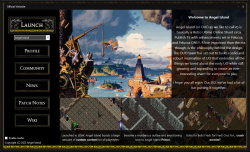
[[File:launcherss.png|thumb|right|250px|link=https://drive.google.com/file/d/1Rsur1WoEhkvmTMB3b6iFpHn_4Ar97WGQ/view?usp=sharing|The launcher's current interface.]]
[[File:launcherss.png|thumb|right|250px|link=https://drive.google.com/file/d/1Rsur1WoEhkvmTMB3b6iFpHn_4Ar97WGQ/view?usp=sharing|The launcher's current interface.]]


<div id=swordborder style="
= Install & Connect =
left:-243px;
top:10px;">
[[File:wikisidebarart.png|link=]]
</div>
 
<div id=swordborder style="
left:-178px;
top: -172px;">
[[File:wikitop4.png|link=]]
</div>
 
<div id=cf style="
left:-192px;
top: -122px;">
[[File:tchestbase2.gif|class=bottom|link=Main_Page]]
</div>
 
<div id=cf style="
left:-58px;
top: -109px;">
[[File:lit01.gif|class=bottom|link=Main_Page]]
</div>
 
<div id=cf style="
left:-145px;
top: -98px;">
[[File:lit02.gif|class=bottom|link=Main_Page]]
</div>
 
<div id=cf style="
left:-70px;
top: -123px;">
[[File:lit04.gif|class=bottom|link=Main_Page]]
</div>
 
<div id=cf style="
left:-161px;
top: -109px;">
[[File:lit06.gif|class=bottom|link=Main_Page]]
</div>
 
<div id=cf style="
left:-127px;
top: -83px;">
[[File:64.png|class=bottom|link=Main_Page]]
</div>
 
<div id=cf style="
left:-192px;
top: -121px;">
[[File:tchestlid2.gif|class=top|link=Main_Page]]
</div>
 
<div id=cf style="
left:-114px;
top: -135px;">
[[File:wikilogo5.png|class=bottom|link=Main_Page]]
</div>
 
<div id=cf style="
left:-182px;
top: -165px;">
[[File:aispwiki.png|class=bottom|link=Main_Page]]
</div>
 
<div id=menubutton style="
left:-110px;
top: 383px;">
[[File:totoparrow2f.png|class=bottom|link=#top|Back to Top]]
[[File:totoparrow1f.png|class=top|link=#top|Back to Top]]
</div>
 
<div id=menubutton style="
left:-140px;
top: 400px;">
[[File:mainmenu02f.png|class=bottom|link=Main_Page]]
[[File:mainmenu01f.png|class=top|link=Main_Page]]
</div>
 
<div id=menubutton style="
left:-110px;
top: 450px;">
[[File:tobotarrow2.png|class=bottom|link=#footer|Bottom of Page]]
[[File:tobotarrow1.png|class=top|link=#footer|Bottom of Page]]
</div>
 
<div id=menubutton style="
left:-140px;
top: 450px;">
[[File:sbit.png|link=]]
</div>
 
<div id=menubutton style="
left:-90px;
top: 450px;">
[[File:sbit2.png|link=]]
</div>
 
{{#css:
 
#p-logo { display:none; }
 
#p-Quick_Navigation-label {
    color:orange;
    font-size:62%;
    text-shadow:0px 0px 4px black, 0px 0px 6px white
}
 
#p-tb-label {
    color:orange;
    font-size:62%;
    text-shadow:0px 0px 4px black, 0px 0px 6px white
}
 
#n-Download-the-Game a {
    color:#FAF9F6;
    font-size:94%;
    text-shadow:0px 0px 4px #0000FF, 2px 2px 8px black
}
 
#n-Join-the-Discord a {
    color:#FAF9F6;
    font-size:94%;
    text-shadow:0px 0px 4px #0000FF, 2px 2px 8px black
}
 
#n-Visit-the-Website a {
    color:#FAF9F6;
    font-size:94%;
    text-shadow:0px 0px 4px #0000FF, 2px 2px 8px black
}
 
#n-Install-Guide a {
    color:white;
    font-size:86%;
    text-shadow:0px 0px 4px #0000FF, 2px 2px 8px black
}
 
#n-Skills-Overview a {
    color:white;
    font-size:86%;
    text-shadow:0px 0px 4px #0000FF, 2px 2px 8px black
}
 
#n-Custom-Content a {
    color:white;
    font-size:86%;
    text-shadow:0px 0px 4px #0000FF, 2px 2px 8px black
}
 
#n-Wiki-Credits a {
    color:white;
    font-size:86%;
    text-shadow:0px 0px 4px #0000FF, 2px 2px 8px black
}
 
#t-whatlinkshere { display:none }
#t-recentchangeslinked { display:none }
#t-info { display:none }
#t-relatedchanges { display:none }
 
#t-permalink a {
    color:white;
    font-size:82%;
    text-shadow:0px 0px 4px #0000FF, 2px 2px 8px black
}
 
#t-print a {
    color:white;
    font-size:82%;
    text-shadow:0px 0px 4px #0000FF, 2px 2px 8px black
}
 
#t-specialpages a {
    color:white;
    font-size:82%;
    text-shadow:0px 0px 4px #0000FF, 2px 2px 8px black
}
 
#cf {
  position:absolute;
  margin:0 auto;
  width:238px;
}
 
#swordborder {
  position:absolute;
  margin:0 auto;
  width:1350px;
}
 
#menubutton {
  position:absolute;
  margin:0 auto;
  width:200px;
}
 
#cf img {
  position:absolute;
  left:0;
  -webkit-transition: opacity 0.2s ease-in-out;
  -moz-transition: opacity 0.2s ease-in-out;
  -o-transition: opacity 0.2s ease-in-out;
  transition: opacity 0.2s ease-in-out;
}
 
#swordborder img {
  position:absolute;
  left:0;
}
 
#menubutton img {
  position:fixed;
  left:1;
  bottom:0;
  -webkit-transition: opacity 0.2s ease-in-out;
  -moz-transition: opacity 0.2s ease-in-out;
  -o-transition: opacity 0.2s ease-in-out;
  transition: opacity 0.2s ease-in-out;
}
 
 
#cf img.top:hover {
  opacity:0;
}
 
#menubutton img.top:hover {
  opacity:0;
}
 
 
}
 
}}
 
</div>
 
 
=Install & Connect=


The launcher will install both Angel Island and Siege Perilous all at once. Both shards are available through the server listing once logged in to the game.


==Using the launcher==
== Using the launcher ==


1) Download the launcher [https://drive.google.com/file/d/1Rsur1WoEhkvmTMB3b6iFpHn_4Ar97WGQ/view?usp=sharing here]. <br>
1. Download the launcher [https://drive.google.com/file/d/1Rsur1WoEhkvmTMB3b6iFpHn_4Ar97WGQ/view?usp=sharing here].
2) Double-click setup to install the launcher. <br>
2. Double-click setup to install the launcher.
3) Run the launcher. <br>
3. Run the launcher.
4) Create a Profile and Install the game to your desired location. <br>
4. Create a Profile and Install the game to your desired location.
5) Select Launch in the top right corner.
5. Select Launch in the top right corner.


Enjoy the game and please check [[Getting Started]] for help with gameplay. You can also [[Ask a Guard]] for help or even another player in the [https://discord.gg/eRq4U2Gk9z Angel Island Discord.]
Enjoy the game and please check [[Getting Started]] for help with gameplay. You can also [[Ask a Guard]] for help or even another player in the [https://discord.gg/eRq4U2Gk9z Angel Island Discord].


==Downloads==
== Downloads ==


'''[https://drive.google.com/file/d/1Rsur1WoEhkvmTMB3b6iFpHn_4Ar97WGQ/view?usp=sharing UO:Angel Island Launcher]'''
* '''[https://drive.google.com/file/d/1Rsur1WoEhkvmTMB3b6iFpHn_4Ar97WGQ/view?usp=sharing UO: Angel Island Launcher]'''
* [https://www.uocartographer.com/Beta/UOCSetup.exe UO Cartographer – Map Assistant]


[https://www.uocartographer.com/Beta/UOCSetup.exe UO Cartographer - Map Assistant]
== Connect ==


==Connect==
Server IP/Name – uoangelisland.com
Port – 2593


Port – 2593
=== Shard Accessibility ===


===Shard Accessibilty===
Currently Angel Island has 3 shards available to connect to.


Angel Island – This is the live production server. Create your character and get immersed in the best MMO ever made!
* '''Angel Island''' – This is the live production server. Create your character and get immersed in the best MMO ever made!
 
* '''Siege Perilous TC''' – This is our test center. It gives players the ability to test different skills and functionalities of the shard without having to worry about resources or time.
Siege Perilous TC – This is our test center. It gives players the ability to test different skills and functionalities of the shard without having to worry about resources or time. Right now you can enjoy all of those test features on Siege Perilous by logging in to this shard.
* '''Siege Perilous''' – A classic Siege Perilous shard, currently open to the public for a live beta test.
 
Siege Perilous - A classic Siege Perilous shard, currently open to the public for a live beta test.

Latest revision as of 18:45, 2 January 2026

The launcher's current interface.

Install & Connect

The launcher will install both Angel Island and Siege Perilous all at once. Both shards are available through the server listing once logged in to the game.

Using the launcher

1. Download the launcher here. 2. Double-click setup to install the launcher. 3. Run the launcher. 4. Create a Profile and Install the game to your desired location. 5. Select Launch in the top right corner.

Enjoy the game and please check Getting Started for help with gameplay. You can also Ask a Guard for help or even another player in the Angel Island Discord.

Downloads

Connect

Server IP/Name – uoangelisland.com Port – 2593

Shard Accessibility

Currently Angel Island has 3 shards available to connect to.

  • Angel Island – This is the live production server. Create your character and get immersed in the best MMO ever made!
  • Siege Perilous TC – This is our test center. It gives players the ability to test different skills and functionalities of the shard without having to worry about resources or time.
  • Siege Perilous – A classic Siege Perilous shard, currently open to the public for a live beta test.