Music Composition: Difference between revisions
EvilManfred (talk | contribs) No edit summary Tag: Manual revert |
No edit summary |
||
| (7 intermediate revisions by 2 users not shown) | |||
| Line 1: | Line 1: | ||
__TOC__ | |||
== Overview == | |||
Ultima Online has always given players freedom to express themselves through their characters, homes, and stories. On Angel Island, musicians can also ''decorate the air'' with the custom Angel Island Music System (AIMS). | |||
With AIMS, bards can play notes using the [play command, write arrangements in Razor, create sheet music, and share or sell compositions through the [[Music Box]]. | |||
[[ | |||
This page follows what you might want to do: | |||
* '''Play something now:''' [[#Getting Started|Getting Started]] and [[#Sample Tunes|Sample Tunes]]. | |||
* '''Write a song and share it:''' [[#Composing, Recording and Sharing|Composing, Recording and Sharing]], then [[Sheet Music]] and the [[Music Box]]. | |||
[[ | * '''Go further:''' timers and settings, Music Karma, sections and repeats, songs in several books, and macros, in the sections after that. | ||
== Getting Started == | |||
Anyone can use [play — no Musicianship or other skill is required. No physical instrument is required either: AIMS supplies a virtual harp, lap harp, or lute. Percussion sounds are free for everyone; other sound effects (the + numbers) require 1,000 [[#Music Karma|Music Karma]]. Type [play musickarma to see yours. | |||
[[ | |||
The basic command is: | |||
[play note pause note pause ... | |||
[ | |||
For example: | |||
[play cl 0.4 cl 0.4 g 0.4 g 0.4 a 0.4 a 0.4 g 0.8 | |||
[ | |||
Numbers represent pauses between notes, in seconds. Begin with the sample tunes below, then explore instrument choices, timing, and reusable passages. | |||
=== Note Values === | |||
The 25 available note names are: | |||
{| class="wikitable" | |||
! Register !! Notes | |||
|- | |||
| Low || cl (low C), csl (low C#) | |||
|- | |||
| Main || d, ds, e, f, fs, g, gs, a, as, b, c (middle C), cs | |||
|- | |||
| High || dh, dsh, eh, fh, fsh, gh, gsh, ah, ash, bh, ch (high C) | |||
|} | |||
=== Instruments and Note Offsets === | |||
AIMS has three virtual instruments in order: Harp (0), LapHarp (1), and Lute (2). Use [play instrument harp, [play instrument lapharp, or [play instrument lute to choose one. The default is Harp. | |||
[[ | |||
Prefix a note with + or - to select an adjacent instrument without changing the main instrument. For example, with LapHarp selected, -a plays on Harp, a on LapHarp, and +a on Lute. | |||
[play instrument lapharp | |||
[play a +a -a b +b -b c +c -c d +d -d | |||
From Harp, ++ selects Lute; from Lute, -- selects Harp: | |||
[play instrument harp | |||
[play a +a ++a b +b ++b | |||
[play instrument lute | |||
[play a -a --a b -b --b | |||
== Sample Tunes == | |||
=== Twinkle Twinkle Little Star === | |||
In Razor, add a two-second pause after the third line and a four-second pause before the last line. | |||
[play cl 0.4 cl 0.4 g 0.4 g 0.4 a 0.4 a 0.4 g 0.8 | |||
[play f 0.4 f 0.4 e 0.4 e 0.4 d 0.4 d 0.4 cl 0.8 | |||
[play g 0.4 g 0.4 f 0.4 f 0.4 e 0.4 e 0.4 d 0.8 | |||
[play g 0.4 g 0.4 f 0.4 f 0.4 e 0.4 e 0.4 d 0.8 | |||
[play cl 0.4 cl 0.4 g 0.4 g 0.4 a 0.4 a 0.4 g 0.8 | |||
[play f 0.4 f 0.4 e 0.4 e 0.4 d 0.4 d 0.4 cl 0.8 | |||
=== Frère Jacques === | |||
In Razor, add a one-second pause between the second and third lines. | |||
[play c 0.3 dh 0.3 eh 0.3 c 0.4 c 0.3 dh 0.3 eh 0.3 c 0.3 | |||
[play eh 0.3 fh 0.3 gh 1.0 eh 0.3 fh 0.3 gh 1.0 gh 0.1 ah 0.1 gh 0.1 fh 0.1 eh 0.3 c 0.3 | |||
[play gh 0.1 ah 0.1 gh 0.1 fh 0.1 eh 0.3 c 0.4 c 0.3 g 0.3 c 1.0 c 0.3 g 0.3 c | |||
=== Pop Goes the Weasel === | |||
[play d 0.2 g 0.6 g 0.2 a 0.6 a 0.2 b 0.2 dh 0.2 b 0.2 g 0.6 | |||
[play d 0.2 g 0.6 g 0.2 a 0.6 c 0.2 b 0.8 g 0.6 | |||
[play d 0.2 g 0.6 g 0.2 a 0.6 a 0.2 b 0.2 dh 0.2 b 0.2 g 0.8 | |||
[play eh 0.8 a 0.4 c 0.2 b 0.8 g | |||
== Composing, Recording and Sharing == | |||
=== Writing a Song === | |||
A song is written in a music composition book, the way a Razor script is: [play lines to play, say lines for lyrics, wait lines between phrases, and # lines at the top for its settings (name, instrument, timer, price). Write it in a text editor and paste it into the book. Then preview it, and transcribe it into [[Sheet Music]] with manuscript paper. | |||
# | See [[Sheet Music#Composition Book|Composition Book]] for writing and pasting, and [[Sheet Music#Settings|Settings]] for every # setting. | ||
=== Preview Without Using Paper === | |||
To hear a composition before transcribing it: | |||
# | # Enter [play preview. | ||
# | # Target the composition book (in your backpack, or within two tiles). | ||
# | # Enter [play preview again to stop. | ||
Preview plays the expanded arrangement just as sheet music would, without consuming manuscript paper. While a preview is active, other [play commands explain how to stop it. | |||
On shards with context menus, single-click a composition book in your backpack and choose '''Start''' to preview it; while it plays, the menu offers '''Stop'''. | |||
=== MidiToAIMS — Convert MIDI Files === | |||
'''[[MidiToAIMS]]''' is a free Windows tool that converts MIDI files into AIMS compositions. Instead of transcribing every note by hand, musicians can start with an existing MIDI file and refine the resulting arrangement in a music composition book. | |||
MidiToAIMS handles the initial transcription, instrument selection, timing, and division into composition books. Musicians remain in control of the arrangement, with options to adjust instruments, tracks, octaves, and note density. | |||
Once imported, the composition follows the same process as any other: preview it, edit it, transcribe it to [[Sheet Music]], and publish it through the [[Music Box]]. | |||
'''[[MidiToAIMS|Download MidiToAIMS and learn how to use it]].''' | |||
=== Music Recorder === | |||
The Music Recorder writes a song into a composition book while you perform it. Play your song once, the way you already play it (a Razor script, or typing [play lines and lyrics yourself), and the recorder writes every line into the book, with the pauses between them. You get a composition you can edit, preview, and transcribe into [[Sheet Music]], without copying your script into the book by hand. | |||
'''You need:''' a music composition book in your backpack (bards sell them). The recording replaces everything in the book, so use a new one or one you don't need. | |||
# Enter '''[MusicRecorder start'''. You are now recording. | |||
# Perform your song: run your Razor script, or type your [play lines and say your lyrics. | |||
# Enter '''[MusicRecorder stop'''. You are asked to target a composition book. | |||
# Target the book. Open it to see your song. | |||
'''What is recorded''' | |||
* Every [play line you play, as <code>say '[play ...'</code>. | |||
* Everything you say, as lyrics: <code>say '...'</code>. | |||
* The time between two lines, as <code>wait</code> (in milliseconds, rounded down to the nearest 100; pauses under 100 milliseconds are left out). | |||
* Your settings at the top of the book: instrument, Prefetch, NewTimer, Timer, Tempo and ConcertMode. If you change one while recording (for example [play instrument lapharp), the book gets the new setting. | |||
Only your own lines are recorded, not other players' music or speech. | |||
'''An example.''' Recording this Razor script: | |||
say '[play -e 0.21 -fs b +eh 0.22 -e +eh 0.21 -g b +eh 0.21' | |||
say '♪ Take my money,' | |||
wait 1400 | |||
say '[play -e 0.21 -fs b +eh 0.22' | |||
writes this into the book (with the default settings): | |||
# Instrument: Harp | |||
# Prefetch: False | |||
# NewTimer: False | |||
# Timer: Classic | |||
# Tempo: 100 | |||
# ConcertMode: False | |||
say '[play -e 0.21 -fs b +eh 0.22 -e +eh 0.21 -g b +eh 0.21' | |||
say '! Take my money,' | |||
wait 1400 | |||
say '[play -e 0.21 -fs b +eh 0.22' | |||
</ | Then add <code># Song:</code> and <code># Author:</code> lines at the top, [[#Preview Without Using Paper|preview]] the book, fix anything you want, and transcribe it. | ||
'''Good to know''' | |||
* Recorded waits are as your client and assistant sent the lines, so check them before publishing. If they are consistently too long, try another client or assistant; the Razor bundled with the Angel Island Launcher has generally been responsive. | |||
* A ♪ in a lyric is written as ! (some clients crash on ♪ in a book). | |||
* A book holds 96 pages (768 lines). A longer recording fills the book, the rest is left out, and you are told. Songs that long are better written with [[#Advanced Composition: Sections and Repeats|sections and repeats]], or across [[#Songs in Several Books|several books]]. | |||
* A recording over 1,024 lines is stopped. | |||
* [MusicRecorder start again starts a new recording; the one in progress is discarded. | |||
* Target the book when asked: the recording ended with [MusicRecorder stop, and targeting anything else loses it. | |||
=== Sheet Music === | |||
[[Sheet Music]] lets composers transcribe compositions into sheet music that anyone can play, give, or sell. Creating sheet music is also the first step toward adding a song to the Music Box. | |||
==Sheet Music== | |||
=== Music Box === | |||
https://game-master.net/images/wiki/musicbox/musicbox1.png | https://game-master.net/images/wiki/musicbox/musicbox1.png | ||
The [[Music Box]] is a luxury music player for homeowners. It supports spoken commands and lets players sample, purchase, and enjoy compositions by other musicians. | |||
[play | == Player Settings and Commands == | ||
The [play command also configures instruments, timing, volume, and performance behavior. | |||
=== [play Config === | |||
Displays the current player settings. | |||
[play | === [play Instrument === | ||
Select Harp, LapHarp, or Lute. Default: Harp. | |||
[play instrument harp | |||
[play instrument lapharp | |||
[play instrument lute | |||
=== [play Timer === | |||
Choose Classic, Dynamic, or Anchored: | |||
[play timer anchored | |||
A composition book can also declare its timer in the header: | |||
# Timer: Anchored | |||
==== Classic ==== | |||
Classic is the original Angel Island timer (2006). It uses a fixed 100-millisecond tick. Notes written together play sequentially, giving a strummed rather than simultaneous-chord effect. Pauses are rounded up to the next 100 milliseconds. Classic is suitable for simple melodies, manual play, and older compositions. It ignores Tempo and Prefetch. | |||
[play timer classic | |||
[play | # Timer: Classic | ||
==== Dynamic ==== | |||
Dynamic (2022) schedules notes using millisecond-based delays, supporting true chords and more detailed rhythms. Tempo specifies the default spacing between successive notes in milliseconds (default 100). Prefetch controls how explicit pauses interact with that spacing: with Tempo 100 and a pause of 500 milliseconds, Prefetch False gives 600 milliseconds between notes, while Prefetch True gives 500. | |||
# Timer: Dynamic | |||
# Prefetch: True | |||
# Tempo: 0 | |||
Because Dynamic schedules relative to the previous note's actual playback time, small delays can accumulate in longer pieces. Testing has shown drift approaching 10% in some cases. | |||
==== Anchored ==== | |||
Anchored supports Dynamic-style chords, Tempo, and Prefetch, but schedules notes relative to the composition's start. This reduces accumulated timing drift. After a server interruption such as a world save, it adjusts its timing reference rather than releasing a burst of overdue notes. Anchored is a good choice for long, rhythmically complex pieces. | |||
# Timer: Anchored | |||
# Prefetch: True | |||
# Tempo: 0 | |||
Existing Dynamic pieces can generally use Anchored without rewriting their notes or pauses. | |||
==== Timing Mode Comparison ==== | |||
{| class="wikitable" | |||
! Feature !! Classic !! Dynamic !! Anchored | |||
|- | |||
| Resolution || 100 ms tick || Millisecond-based || Millisecond-based | |||
|- | |||
| True chords || No || Yes || Yes | |||
|- | |||
| Tempo / Prefetch || Ignored || Supported || Supported | |||
|- | |||
| Timing drift || Fixed-tick behavior || Can accumulate || Minimized | |||
|- | |||
| Best for || Simple and legacy music || Detailed arrangements || Detailed arrangements with stable tempo | |||
|} | |||
==== Compatibility ==== | |||
Legacy NewTimer settings remain supported: | |||
# NewTimer: False | |||
# NewTimer: True | |||
[play newtimer false | |||
[play newtimer true | |||
NewTimer False corresponds to Classic; NewTimer True corresponds to Dynamic. If both Timer and NewTimer headers are present, Timer wins. Without an explicit timer setting, songs default to Classic. | |||
=== [play Prefetch === | |||
Use with Dynamic or Anchored (not Classic): | |||
[play prefetch true | |||
When enabled, an explicit pause replaces rather than adds to the default Tempo interval. Default: False. Older compositions may need pause adjustments when switching modes. See [[#Advanced Usage|Advanced Usage]]. | |||
=== [play Tempo === | |||
Tempo controls the default spacing between notes in milliseconds for Dynamic and Anchored. | |||
[play tempo 100 | |||
At 50, the default interval is half as long as at 100; at 200 it is twice as long. Changing Tempo after composing may require adjusting explicit pauses. Default: 100. | |||
=== [play Reset === | |||
Resets the player to its defaults: Harp, Classic (NewTimer False), Prefetch False, Tempo 100, Chatter True, ConcertMode False, Volume 20. Your macros are kept. | |||
=== [play + (Sound Effects) === | |||
Musicians can play sounds from the game client by number: | |||
[play +480 | |||
Here +480 is the sound associated with targeting the Cure spell. Percussion sounds (clicks, knocks, thuds, swishes, the anvil and wind chimes) are free for everyone; other sounds need 1,000 Music Karma, both to play them and to transcribe them into sheet music. Anyone can listen to sheet music that uses them. See [[Sound List]]. | |||
=== [play Chatter === | |||
[play chatter false | |||
Default: | Enables or disables the ''*plays a tune*'' emote when you begin playing. With Chatter on, the Classic timer also warns you about repeated notes that may not play. Default: True. | ||
=== [play ConcertMode === | |||
[play ConcertMode True | |||
Allows nearby listeners to hear the volume levels set by the musician regardless of distance. Default: False. | |||
=== [FilterMusic === | |||
Toggles whether composition music plays on your client; it does not silence music for others. | |||
=== [StopMusic === | |||
Stops your character's [play performance immediately. | |||
== Volume, Music Karma and Composer Titles == | |||
=== Volume === | |||
Place vN before a note or group of notes to change volume. Volumes run from v0 (quietest) to v20 (loudest); higher values play as v20. The default is v20. [play volume N sets your default volume. | |||
Volume steps are heard only in ConcertMode: enable [play ConcertMode True and every listener hears the volume you set, regardless of distance. Without ConcertMode, volume steps are ignored and listeners hear normal distance-based volume. | |||
This example ramps from quietest to loudest: | |||
[play concertmode true | |||
[play macro part1=v0 1 a v1 1 a v2 1 a v3 1 a v4 1 a v5 1 a v6 1 a | |||
[play macro part2=v7 1 a v8 1 a v9 1 a v10 1 a v11 1 a v12 1 a v13 1 a | |||
[play macro part3=v14 1 a v15 1 a v16 1 a v17 1 a v18 1 a v19 1 a v20 1 a | |||
[play %part1% %part2% %part3% | |||
=== Music Karma === | |||
Musicians earn Music Karma through their published compositions: 100 points for each approved composition in the [[Music Box]] global repository, 100 points for each copy sold, and 100 points each time one of their compositions is played. Karma is recalculated periodically, so a new sale or play may take up to 15 minutes to appear. Type [play musickarma to see yours. | |||
At 1,000 Music Karma, musicians may use non-musical sounds from the game client with [play and in their sheet music. Percussion sounds are free for everyone, whatever their karma; the drums that [[MidiToAIMS]] writes use only these. Anyone can listen to sheet music that uses sound effects. See [[Sound List]]. | |||
=== Composer Titles === | |||
Join the NPC Bards Guild to work toward the Composer profession title, progressing from Neophyte through Grandmaster to Elder and Legendary (120). Progress comes from publishing, sales, plays, and use of [play, with bonuses for advanced features. [play usage counts only after joining the guild; publishing, plays, and sales before joining are credited when you join. Published works can also earn ordinary Karma and Fame. | |||
== Advanced Composition: Sections and Repeats == | |||
Sections and repeats let you write a musical passage once and reuse it throughout a composition. They are especially helpful for verses, choruses, accompaniment, and songs approaching the composition book's 96-page limit (see [[#Songs in Several Books|Songs in Several Books]]). | |||
Section markers are comment lines in the composition book. Razor and ordinary [play commands ignore them, so the musical lines remain Razor-compatible. AIMS expands the arrangement before previewing or transcription. | |||
=== Named Sections === | |||
A normal section plays where it is written. You can play it again later by name: | |||
# Section: Chorus | |||
say '[play c 0.3 e 0.3 g 0.3 c 0.5' | |||
# End | |||
# Play: Chorus | |||
# Play: Chorus x3 | |||
Here the chorus plays once at its definition, once at the first # Play, and three more times at the second # Play. | |||
=== Silent Sections === | |||
A silent section defines material without playing it at that location. It plays only when called: | |||
# Silent Section: Chords | |||
say '[play -e -a -cs 0.44 -e -a -cs 0.28' | |||
say '[play -e -a csl 0.28 -ds -gs -b 0.29' | |||
# End | |||
# Play: Chords | |||
a | === Simple Repeats === | ||
Use a repeat when you do not need a reusable name: | |||
# Repeat from here | |||
say '[play c 0.2 d 0.2 e 0.2 f 0.2' | |||
say '[play g 0.2 a 0.2 b 0.2 c 0.5' | |||
# Repeat x3 | |||
The count is the ''total'' number of performances, including the first. Thus x1 plays once, x2 twice, and x3 three times. | |||
=== Syntax Reference === | |||
{| class="wikitable" | |||
! Marker !! Meaning | |||
|- | |||
| # Section: Name || Begins a named passage that plays here and may be called later. | |||
|- | |||
| # Silent Section: Name || Defines a passage that plays only when called. | |||
|- | |||
| # End || Closes the current section. | |||
|- | |||
| # End: Name || Closes the named section; mismatched names are errors. | |||
|- | |||
| # Play: Name || Plays a previously defined, closed section once. | |||
|- | |||
| # Play: Name x3 || Plays it three times here. | |||
|- | |||
| # Repeat from here || Marks the start of a repeat. | |||
|- | |||
| # Repeat x3 || Ends the repeat and plays its contents three times in total. | |||
|} | |||
=== | === Putting It Together === | ||
This example uses a silent accompaniment inside a verse and repeats the verse: | |||
# Song: Example | |||
# Author: Galois | |||
# Instrument: LapHarp | |||
# Silent Section: Chords | |||
say '[play -e -a -cs 0.44 -e -a -cs 0.28' | |||
say '[play -e -a csl 0.28 -ds -gs -b 0.29' | |||
# End | |||
# Section: Verse | |||
say '[play -ds -b 0.14 fs 0.14 -fsh 0.14' | |||
# Play: Chords | |||
# End | |||
# Repeat from here | |||
# Play: Verse | |||
# Repeat x2 | |||
# Play: Chords x2 | |||
The verse plays once at its definition, twice more inside the repeat, and the chords play twice at the end. | |||
For first and second endings, define the shared passage as a silent section, play it, write the first ending, play it again, and write the second ending: | |||
# Silent Section: Theme | |||
say '[play c 0.3 e 0.3 g 0.3' | |||
# End | |||
# Play: Theme | |||
say '[play a 0.3 g 0.5' | |||
# Play: Theme | |||
say '[play f 0.3 c 0.5' | |||
=== Rules and Limits === | |||
* Commands are case-insensitive, and spacing is flexible: #play:Chorus x2 and # Play: CHORUS both work. | |||
* Section names may contain spaces, must be unique, and must not contain the word "loop". | |||
* Define and close a section before using # Play on it. | |||
* Sections and repeats may be nested, including sections that play other sections, up to eight levels deep. | |||
* Repeat and play counts range from x1 to x99. | |||
* A composition may expand to at most 2,000 lines and 64 KB once its sections and repeats are written out. A full composition book holds about 17 KB, so that is about four full books of music. | |||
* Each marker must occupy its own line; do not append one to a say line. | |||
* Unrecognized # lines remain comments, such as # Verse 1, # Play softly here, and # End of verse. | |||
* Settings such as # Song:, # Author:, and # Instrument: work as always (see [[Sheet Music#Settings|Settings]]). | |||
* A reused section includes all its contents: musical lines, waits, lyrics, and comments. | |||
=== | === Transcribing and Troubleshooting === | ||
Transcribing is described on [[Sheet Music#Instructions|Sheet Music]]. AIMS expands sections and repeats into the full arrangement on the resulting sheet. The compact composition and the same music written out in full have the same song identity (hash). Older books without section markers continue to transcribe normally. | |||
If AIMS finds a structural mistake, transcription stops without consuming the paper. Up to five errors appear in red, followed by a count of any remaining errors. Messages identify the page and line and may suggest a correction: | |||
page 37: '# Play: Brige' - no section named "Brige" (did you mean "Bridge"?) | |||
The checks include unknown or duplicate sections, missing or mismatched endings, unmatched repeats, sections played before being closed, self-references, invalid counts, malformed marker placement, excessive nesting, and compositions that expand beyond 2,000 lines or 64 KB. | |||
=== Songs in Several Books === | |||
A composition book holds at most 96 pages. This is a limit of the game client, not of the server: the client draws an entire book as one image, and a book much larger than 100 pages crashes the client when it is opened. Sheet music itself has no page limit, so a song too long for one book can be written across several books and transcribed into a single sheet. | |||
This is optional. A song that fits in one book needs nothing new, and sections often make a long song fit in one book. | |||
To split a song, begin every book with the song's title and the book's place in the song: | |||
# Song: Lanterns at the Hearth | |||
# Book: 1/3 | |||
The | The second book begins with # Song: Lanterns at the Hearth and # Book: 2/3, and the third with # Book: 3/3. Then: | ||
* Keep all of the books together in your backpack or in one bag. | |||
* Target any one of them with manuscript paper, [play preview, or the book's context menu: AIMS reads all of the books in order and makes one song. | |||
* Put the song's settings (# Author:, # Instrument:, # Timer: and so on) in book 1. Later books need only # Song: and # Book:. | |||
* A section can be played from any later book. A useful pattern is to make book 1 your library of silent sections (verse, chorus, riffs) and write the song itself in the following books as # Play: lines. Because a section must be written before it is played, the library goes in the first book, not the last. | |||
* A song may span up to nine books, but written out it must still fit within 2,000 lines and 64 KB, about four full books (see [[#Rules and Limits|Rules and Limits]]). Sections and repeats save pages, not length: the limit counts the song as it plays, so a passage played three times counts three times. | |||
If a book is missing, appears twice, or the books disagree on the count, AIMS says which book and transcribes nothing. Mistakes inside the books name the book and page: | |||
book 3, page 1: '# Play: Chorsu' - no section named "Chorsu" (did you mean "Chorus"?) | |||
== Algebraic Macros == | |||
Macros let you name a note sequence, reuse it, transpose it, reverse it, or change its pauses. Unlike sections, macros transform note patterns; sections reuse complete passages, including waits and lyrics. | |||
=== Defining and Playing a Macro === | |||
[play macro bassline = cl 0.2 e 0.2 g 0.2 a | |||
[play %bassline% | |||
[play instrument harp | |||
[play %bassline% 0.2 %bassline% | |||
Macro names use letters and digits only. [play list shows your macros, and [play macro name= (with nothing after the =) deletes one. Macros are kept when you use [play reset. | |||
=== | === Transposing === | ||
[play %bassline[+5]% | |||
This transposes five half-steps upward (a perfect fourth): | |||
[play f 0.2 a 0.2 c 0.2 dh | |||
Use [+n] or [-n]. Notes outside the supported cl-to-ch range are dropped. Notes written with an instrument offset (such as +a or -c) are not transposed. | |||
=== | === Reversing === | ||
[play %-bassline% | |||
This reverses the sequence: | |||
[play a 0.2 g 0.2 e 0.2 cl | |||
For example, a blues-style pattern can combine original and reversed macros: | |||
[play %bassline% 0.2 as 0.2 %-bassline% | |||
[play %bassline% 0.2 as 0.2 %-bassline% | |||
[play %bassline[+5]% 0.2 dsh 0.2 %-bassline[+5]% | |||
[play %bassline% 0.2 as 0.2 %-bassline% | |||
[play %bassline[+7]% 0.2 %bassline[+5]% 0.2 | |||
[play %bassline% 0.2 as 0.2 %-bassline% | |||
[play %bassline | === Changing Pauses === | ||
[play %bassline<+0.1>% | |||
Adds 0.1 second to every pause, producing: | |||
[play cl 0.3 e 0.3 g 0.3 a | |||
The arithmetic operators can be combined with a macro: | |||
{| class="wikitable" | |||
! Expression !! Resulting pauses | |||
|- | |||
| %bassline% || 0.2 | |||
|- | |||
| %bassline<+0.01>% || 0.21 | |||
|- | |||
| %bassline<-0.01>% || 0.19 | |||
|- | |||
| %bassline<*2>% || 0.4 | |||
|- | |||
| %bassline</2>% || 0.1 | |||
|} | |||
=== | === Combining Operations === | ||
Define minor and major arpeggios: | |||
[play macro min = cl 0.1 ds 0.1 g 0.1 c | |||
[play macro maj = cl 0.1 e 0.1 g 0.1 c | |||
Then transpose, reverse, and change their pacing in the same expression: | |||
[play %min[+2]</2>% 0.2 %-min[+2]</2>% 0.8 | |||
[play %min[+2]</2>% 0.2 %-min[+2]</2>% 0.1 e 0.1 f 0.1 g 0.1 a 0.8 | |||
[play %maj[+5]</2>% 0.2 fh 0.05 eh 0.05 c 0.05 a 0.8 | |||
[play %min[+2]</2>% 0.2 %-min[+2]</2>% 0.8 | |||
Or a Pachelbel-inspired progression: | |||
[play %maj[+12]<*2>% 0.2 %maj[+7]<*2>% 0.2 %min[+9]<*2>% 0.2 %min[+4]<*2>% 0.2 | |||
[play %maj[+5]<*2>% 0.2 %maj<*2>% 0.2 %maj[+5]<*2>% 0.2 %maj[+7]<*2>% | |||
A pause change needs an operator (+, -, * or /); without one, such as <2>, the pauses are left unchanged. | |||
Many thanks to Galois for contributing the algebraic macros material. | |||
== Advanced Usage == | |||
The following technical observations and examples were contributed by Galois in 2022. He measured them in game with the Dynamic timer (then called NewTimer), and they remain a good guide to how Tempo and Prefetch shape timing. The Anchored timer (2026) follows the same Tempo and Prefetch rules but schedules every note from the song's start, so it may not show the small extra delays measured here. | |||
=== Understanding Prefetch and NewTimer === | |||
Consider: | |||
[play cl 0.1 d 0.1 e | |||
[play cl 0.1 d 0.1 e | |||
https://game-master.net/images/wiki/musicbox/musicbox14.png | https://game-master.net/images/wiki/musicbox/musicbox14.png | ||
Tempo determines the default note spacing. Prefetch controls whether an explicit pause begins without adding the default delay. Thus you can play closely spaced notes with Prefetch enabled: | |||
[play cl 0.01 d 0.01 e 0.01 f 0.01 g | |||
[play cl 0.01 d 0.01 e 0.01 f 0.01 g | |||
With Prefetch disabled, negative pauses can also request prefetch-style spacing: | |||
[play cl -0.01 d -0.01 e -0.01 f -0.01 g | |||
These tools help tune precise rhythms such as three notes against two. If no pause is specified (for example, [play cl d e), Prefetch has no effect on that interval. | |||
=== Repeating Notes === | |||
The client has a limitation when replaying the same sound file rapidly: a note played again within about half its length is skipped (about 0.2 seconds for the harps, 0.15 seconds for the lute). Played again later, while it is still sounding, it starts over. So lute notes can be repeated a little faster than harp notes. Switching instruments can sometimes help because the client then plays a different sound file, provided the desired note exists in both registers. | |||
=== Using Multiple Instruments === | |||
This example combines a standing-harp accompaniment with lap-harp melody, inspired by ''Chariots of Fire'': | |||
[1 | say '[play newtimer true' | ||
say '[play prefetch false' | |||
say '[play tempo 90' | |||
say '[play instrument harp' | |||
say '[play csl 0.1 csl 0.1 csl 0.1 csl 0.1' | |||
wait 800 | |||
say '[play csl 0.1 csl 0.1 csl -0.01 +cs 0.1 csl 0.1' | |||
wait 800 | |||
# Note 3 against 2 rhythm | |||
say '[play csl -0.01 +fsh 0.08 csl -0.07 +gsh -0.15 csl -0.15 +ash -0.07 csl 0.1' | |||
wait 800 | |||
say '[play csl -0.01 +gsh 0.08 csl 0.1 csl 0.1 csl 0.1' | |||
wait 800 | |||
say '[play csl -0.01 +fh 0.08 csl 0.1 csl 0.1 csl 0.1' | |||
=== | === Case Study: A Three-Over-Two Rhythm === | ||
Galois first chose Tempo 90 with 0.1-second pauses for the desired accompaniment feel. To estimate the effective timing interval, he compared: | |||
[play cl 0.1 cl 0.1 cl 0.1 cl 0.1 g 0.3 g 0.3 cl 0.1 cl 0.1 cl 0.1 cl 0.1 g 0.3 g 0.3 | |||
With a more closely matched rhythm: | |||
1. | [play cl 0.1 cl 0.1 cl 0.1 cl 0.1 g 0.34 g 0.34 cl 0.1 cl 0.1 cl 0.1 cl 0.1 g 0.34 g 0.34 | ||
The timing relationship was: | |||
2 * (0.01 + x + 0.1) = 0.01 + x + 0.34 | |||
This suggested an effective interval component of about 0.13 seconds at that tempo. Four eighth-note intervals then total: | |||
4 * (0.01 + 0.13 + 0.10) = 0.96 seconds | |||
Dividing this into three yields 0.32 seconds per triplet. The bassline falls at 0.00, 0.24, 0.48, 0.72, and 0.96 seconds, while the triplets fall at 0.00, 0.32, and 0.64 seconds. | |||
== History and Credits == | |||
AIMS began in 2006, when Rhiannon wrote Angel Island's first music player, with fixes from Pix. It played simple tunes on the Classic timer. | |||
In 2022 Adam Ant rewrote it into the music system described here: [play settings, Tempo and Prefetch, the Dynamic timer, instrument changes within a song, sound effects, the music composition book, sheet music, the [[Music Box]], and the Music Recorder. | |||
and | In 2026 Adam Ant modernized it, with AI assistants doing much of the hands-on work: the Anchored timer, sections and repeats, preview, songs in several books, book Paste, free percussion, and [[MidiToAIMS]]. | ||
Galois contributed the algebraic macros material and the timing analysis in [[#Advanced Usage|Advanced Usage]], and his songs are the model for MidiToAIMS's drum kit. | |||
Latest revision as of 09:30, 6 November 2026
Overview
Ultima Online has always given players freedom to express themselves through their characters, homes, and stories. On Angel Island, musicians can also decorate the air with the custom Angel Island Music System (AIMS).
With AIMS, bards can play notes using the [play command, write arrangements in Razor, create sheet music, and share or sell compositions through the Music Box.
This page follows what you might want to do:
- Play something now: Getting Started and Sample Tunes.
- Write a song and share it: Composing, Recording and Sharing, then Sheet Music and the Music Box.
- Go further: timers and settings, Music Karma, sections and repeats, songs in several books, and macros, in the sections after that.
Getting Started
Anyone can use [play — no Musicianship or other skill is required. No physical instrument is required either: AIMS supplies a virtual harp, lap harp, or lute. Percussion sounds are free for everyone; other sound effects (the + numbers) require 1,000 Music Karma. Type [play musickarma to see yours.
The basic command is:
[play note pause note pause ...
For example:
[play cl 0.4 cl 0.4 g 0.4 g 0.4 a 0.4 a 0.4 g 0.8
Numbers represent pauses between notes, in seconds. Begin with the sample tunes below, then explore instrument choices, timing, and reusable passages.
Note Values
The 25 available note names are:
| Register | Notes |
|---|---|
| Low | cl (low C), csl (low C#) |
| Main | d, ds, e, f, fs, g, gs, a, as, b, c (middle C), cs |
| High | dh, dsh, eh, fh, fsh, gh, gsh, ah, ash, bh, ch (high C) |
Instruments and Note Offsets
AIMS has three virtual instruments in order: Harp (0), LapHarp (1), and Lute (2). Use [play instrument harp, [play instrument lapharp, or [play instrument lute to choose one. The default is Harp.
Prefix a note with + or - to select an adjacent instrument without changing the main instrument. For example, with LapHarp selected, -a plays on Harp, a on LapHarp, and +a on Lute.
[play instrument lapharp
[play a +a -a b +b -b c +c -c d +d -d
From Harp, ++ selects Lute; from Lute, -- selects Harp:
[play instrument harp
[play a +a ++a b +b ++b
[play instrument lute
[play a -a --a b -b --b
Sample Tunes
Twinkle Twinkle Little Star
In Razor, add a two-second pause after the third line and a four-second pause before the last line.
[play cl 0.4 cl 0.4 g 0.4 g 0.4 a 0.4 a 0.4 g 0.8
[play f 0.4 f 0.4 e 0.4 e 0.4 d 0.4 d 0.4 cl 0.8
[play g 0.4 g 0.4 f 0.4 f 0.4 e 0.4 e 0.4 d 0.8
[play g 0.4 g 0.4 f 0.4 f 0.4 e 0.4 e 0.4 d 0.8
[play cl 0.4 cl 0.4 g 0.4 g 0.4 a 0.4 a 0.4 g 0.8
[play f 0.4 f 0.4 e 0.4 e 0.4 d 0.4 d 0.4 cl 0.8
Frère Jacques
In Razor, add a one-second pause between the second and third lines.
[play c 0.3 dh 0.3 eh 0.3 c 0.4 c 0.3 dh 0.3 eh 0.3 c 0.3
[play eh 0.3 fh 0.3 gh 1.0 eh 0.3 fh 0.3 gh 1.0 gh 0.1 ah 0.1 gh 0.1 fh 0.1 eh 0.3 c 0.3
[play gh 0.1 ah 0.1 gh 0.1 fh 0.1 eh 0.3 c 0.4 c 0.3 g 0.3 c 1.0 c 0.3 g 0.3 c
Pop Goes the Weasel
[play d 0.2 g 0.6 g 0.2 a 0.6 a 0.2 b 0.2 dh 0.2 b 0.2 g 0.6
[play d 0.2 g 0.6 g 0.2 a 0.6 c 0.2 b 0.8 g 0.6
[play d 0.2 g 0.6 g 0.2 a 0.6 a 0.2 b 0.2 dh 0.2 b 0.2 g 0.8
[play eh 0.8 a 0.4 c 0.2 b 0.8 g
Composing, Recording and Sharing
Writing a Song
A song is written in a music composition book, the way a Razor script is: [play lines to play, say lines for lyrics, wait lines between phrases, and # lines at the top for its settings (name, instrument, timer, price). Write it in a text editor and paste it into the book. Then preview it, and transcribe it into Sheet Music with manuscript paper.
See Composition Book for writing and pasting, and Settings for every # setting.
Preview Without Using Paper
To hear a composition before transcribing it:
- Enter [play preview.
- Target the composition book (in your backpack, or within two tiles).
- Enter [play preview again to stop.
Preview plays the expanded arrangement just as sheet music would, without consuming manuscript paper. While a preview is active, other [play commands explain how to stop it.
On shards with context menus, single-click a composition book in your backpack and choose Start to preview it; while it plays, the menu offers Stop.
MidiToAIMS — Convert MIDI Files
MidiToAIMS is a free Windows tool that converts MIDI files into AIMS compositions. Instead of transcribing every note by hand, musicians can start with an existing MIDI file and refine the resulting arrangement in a music composition book.
MidiToAIMS handles the initial transcription, instrument selection, timing, and division into composition books. Musicians remain in control of the arrangement, with options to adjust instruments, tracks, octaves, and note density.
Once imported, the composition follows the same process as any other: preview it, edit it, transcribe it to Sheet Music, and publish it through the Music Box.
Download MidiToAIMS and learn how to use it.
Music Recorder
The Music Recorder writes a song into a composition book while you perform it. Play your song once, the way you already play it (a Razor script, or typing [play lines and lyrics yourself), and the recorder writes every line into the book, with the pauses between them. You get a composition you can edit, preview, and transcribe into Sheet Music, without copying your script into the book by hand.
You need: a music composition book in your backpack (bards sell them). The recording replaces everything in the book, so use a new one or one you don't need.
- Enter [MusicRecorder start. You are now recording.
- Perform your song: run your Razor script, or type your [play lines and say your lyrics.
- Enter [MusicRecorder stop. You are asked to target a composition book.
- Target the book. Open it to see your song.
What is recorded
- Every [play line you play, as
say '[play ...'. - Everything you say, as lyrics:
say '...'. - The time between two lines, as
wait(in milliseconds, rounded down to the nearest 100; pauses under 100 milliseconds are left out). - Your settings at the top of the book: instrument, Prefetch, NewTimer, Timer, Tempo and ConcertMode. If you change one while recording (for example [play instrument lapharp), the book gets the new setting.
Only your own lines are recorded, not other players' music or speech.
An example. Recording this Razor script:
say '[play -e 0.21 -fs b +eh 0.22 -e +eh 0.21 -g b +eh 0.21'
say '♪ Take my money,'
wait 1400
say '[play -e 0.21 -fs b +eh 0.22'
writes this into the book (with the default settings):
# Instrument: Harp
# Prefetch: False
# NewTimer: False
# Timer: Classic
# Tempo: 100
# ConcertMode: False
say '[play -e 0.21 -fs b +eh 0.22 -e +eh 0.21 -g b +eh 0.21'
say '! Take my money,'
wait 1400
say '[play -e 0.21 -fs b +eh 0.22'
Then add # Song: and # Author: lines at the top, preview the book, fix anything you want, and transcribe it.
Good to know
- Recorded waits are as your client and assistant sent the lines, so check them before publishing. If they are consistently too long, try another client or assistant; the Razor bundled with the Angel Island Launcher has generally been responsive.
- A ♪ in a lyric is written as ! (some clients crash on ♪ in a book).
- A book holds 96 pages (768 lines). A longer recording fills the book, the rest is left out, and you are told. Songs that long are better written with sections and repeats, or across several books.
- A recording over 1,024 lines is stopped.
- [MusicRecorder start again starts a new recording; the one in progress is discarded.
- Target the book when asked: the recording ended with [MusicRecorder stop, and targeting anything else loses it.
Sheet Music
Sheet Music lets composers transcribe compositions into sheet music that anyone can play, give, or sell. Creating sheet music is also the first step toward adding a song to the Music Box.
Music Box
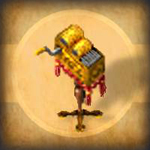
The Music Box is a luxury music player for homeowners. It supports spoken commands and lets players sample, purchase, and enjoy compositions by other musicians.
Player Settings and Commands
The [play command also configures instruments, timing, volume, and performance behavior.
[play Config
Displays the current player settings.
[play Instrument
Select Harp, LapHarp, or Lute. Default: Harp.
[play instrument harp
[play instrument lapharp
[play instrument lute
[play Timer
Choose Classic, Dynamic, or Anchored:
[play timer anchored
A composition book can also declare its timer in the header:
# Timer: Anchored
Classic
Classic is the original Angel Island timer (2006). It uses a fixed 100-millisecond tick. Notes written together play sequentially, giving a strummed rather than simultaneous-chord effect. Pauses are rounded up to the next 100 milliseconds. Classic is suitable for simple melodies, manual play, and older compositions. It ignores Tempo and Prefetch.
[play timer classic
# Timer: Classic
Dynamic
Dynamic (2022) schedules notes using millisecond-based delays, supporting true chords and more detailed rhythms. Tempo specifies the default spacing between successive notes in milliseconds (default 100). Prefetch controls how explicit pauses interact with that spacing: with Tempo 100 and a pause of 500 milliseconds, Prefetch False gives 600 milliseconds between notes, while Prefetch True gives 500.
# Timer: Dynamic
# Prefetch: True
# Tempo: 0
Because Dynamic schedules relative to the previous note's actual playback time, small delays can accumulate in longer pieces. Testing has shown drift approaching 10% in some cases.
Anchored
Anchored supports Dynamic-style chords, Tempo, and Prefetch, but schedules notes relative to the composition's start. This reduces accumulated timing drift. After a server interruption such as a world save, it adjusts its timing reference rather than releasing a burst of overdue notes. Anchored is a good choice for long, rhythmically complex pieces.
# Timer: Anchored
# Prefetch: True
# Tempo: 0
Existing Dynamic pieces can generally use Anchored without rewriting their notes or pauses.
Timing Mode Comparison
| Feature | Classic | Dynamic | Anchored |
|---|---|---|---|
| Resolution | 100 ms tick | Millisecond-based | Millisecond-based |
| True chords | No | Yes | Yes |
| Tempo / Prefetch | Ignored | Supported | Supported |
| Timing drift | Fixed-tick behavior | Can accumulate | Minimized |
| Best for | Simple and legacy music | Detailed arrangements | Detailed arrangements with stable tempo |
Compatibility
Legacy NewTimer settings remain supported:
# NewTimer: False
# NewTimer: True
[play newtimer false
[play newtimer true
NewTimer False corresponds to Classic; NewTimer True corresponds to Dynamic. If both Timer and NewTimer headers are present, Timer wins. Without an explicit timer setting, songs default to Classic.
[play Prefetch
Use with Dynamic or Anchored (not Classic):
[play prefetch true
When enabled, an explicit pause replaces rather than adds to the default Tempo interval. Default: False. Older compositions may need pause adjustments when switching modes. See Advanced Usage.
[play Tempo
Tempo controls the default spacing between notes in milliseconds for Dynamic and Anchored.
[play tempo 100
At 50, the default interval is half as long as at 100; at 200 it is twice as long. Changing Tempo after composing may require adjusting explicit pauses. Default: 100.
[play Reset
Resets the player to its defaults: Harp, Classic (NewTimer False), Prefetch False, Tempo 100, Chatter True, ConcertMode False, Volume 20. Your macros are kept.
[play + (Sound Effects)
Musicians can play sounds from the game client by number:
[play +480
Here +480 is the sound associated with targeting the Cure spell. Percussion sounds (clicks, knocks, thuds, swishes, the anvil and wind chimes) are free for everyone; other sounds need 1,000 Music Karma, both to play them and to transcribe them into sheet music. Anyone can listen to sheet music that uses them. See Sound List.
[play Chatter
[play chatter false
Enables or disables the *plays a tune* emote when you begin playing. With Chatter on, the Classic timer also warns you about repeated notes that may not play. Default: True.
[play ConcertMode
[play ConcertMode True
Allows nearby listeners to hear the volume levels set by the musician regardless of distance. Default: False.
[FilterMusic
Toggles whether composition music plays on your client; it does not silence music for others.
[StopMusic
Stops your character's [play performance immediately.
Volume, Music Karma and Composer Titles
Volume
Place vN before a note or group of notes to change volume. Volumes run from v0 (quietest) to v20 (loudest); higher values play as v20. The default is v20. [play volume N sets your default volume.
Volume steps are heard only in ConcertMode: enable [play ConcertMode True and every listener hears the volume you set, regardless of distance. Without ConcertMode, volume steps are ignored and listeners hear normal distance-based volume.
This example ramps from quietest to loudest:
[play concertmode true
[play macro part1=v0 1 a v1 1 a v2 1 a v3 1 a v4 1 a v5 1 a v6 1 a
[play macro part2=v7 1 a v8 1 a v9 1 a v10 1 a v11 1 a v12 1 a v13 1 a
[play macro part3=v14 1 a v15 1 a v16 1 a v17 1 a v18 1 a v19 1 a v20 1 a
[play %part1% %part2% %part3%
Music Karma
Musicians earn Music Karma through their published compositions: 100 points for each approved composition in the Music Box global repository, 100 points for each copy sold, and 100 points each time one of their compositions is played. Karma is recalculated periodically, so a new sale or play may take up to 15 minutes to appear. Type [play musickarma to see yours.
At 1,000 Music Karma, musicians may use non-musical sounds from the game client with [play and in their sheet music. Percussion sounds are free for everyone, whatever their karma; the drums that MidiToAIMS writes use only these. Anyone can listen to sheet music that uses sound effects. See Sound List.
Composer Titles
Join the NPC Bards Guild to work toward the Composer profession title, progressing from Neophyte through Grandmaster to Elder and Legendary (120). Progress comes from publishing, sales, plays, and use of [play, with bonuses for advanced features. [play usage counts only after joining the guild; publishing, plays, and sales before joining are credited when you join. Published works can also earn ordinary Karma and Fame.
Advanced Composition: Sections and Repeats
Sections and repeats let you write a musical passage once and reuse it throughout a composition. They are especially helpful for verses, choruses, accompaniment, and songs approaching the composition book's 96-page limit (see Songs in Several Books).
Section markers are comment lines in the composition book. Razor and ordinary [play commands ignore them, so the musical lines remain Razor-compatible. AIMS expands the arrangement before previewing or transcription.
Named Sections
A normal section plays where it is written. You can play it again later by name:
# Section: Chorus
say '[play c 0.3 e 0.3 g 0.3 c 0.5'
# End
# Play: Chorus
# Play: Chorus x3
Here the chorus plays once at its definition, once at the first # Play, and three more times at the second # Play.
Silent Sections
A silent section defines material without playing it at that location. It plays only when called:
# Silent Section: Chords
say '[play -e -a -cs 0.44 -e -a -cs 0.28'
say '[play -e -a csl 0.28 -ds -gs -b 0.29'
# End
# Play: Chords
Simple Repeats
Use a repeat when you do not need a reusable name:
# Repeat from here
say '[play c 0.2 d 0.2 e 0.2 f 0.2'
say '[play g 0.2 a 0.2 b 0.2 c 0.5'
# Repeat x3
The count is the total number of performances, including the first. Thus x1 plays once, x2 twice, and x3 three times.
Syntax Reference
| Marker | Meaning |
|---|---|
| # Section: Name | Begins a named passage that plays here and may be called later. |
| # Silent Section: Name | Defines a passage that plays only when called. |
| # End | Closes the current section. |
| # End: Name | Closes the named section; mismatched names are errors. |
| # Play: Name | Plays a previously defined, closed section once. |
| # Play: Name x3 | Plays it three times here. |
| # Repeat from here | Marks the start of a repeat. |
| # Repeat x3 | Ends the repeat and plays its contents three times in total. |
Putting It Together
This example uses a silent accompaniment inside a verse and repeats the verse:
# Song: Example
# Author: Galois
# Instrument: LapHarp
# Silent Section: Chords
say '[play -e -a -cs 0.44 -e -a -cs 0.28'
say '[play -e -a csl 0.28 -ds -gs -b 0.29'
# End
# Section: Verse
say '[play -ds -b 0.14 fs 0.14 -fsh 0.14'
# Play: Chords
# End
# Repeat from here
# Play: Verse
# Repeat x2
# Play: Chords x2
The verse plays once at its definition, twice more inside the repeat, and the chords play twice at the end.
For first and second endings, define the shared passage as a silent section, play it, write the first ending, play it again, and write the second ending:
# Silent Section: Theme
say '[play c 0.3 e 0.3 g 0.3'
# End
# Play: Theme
say '[play a 0.3 g 0.5'
# Play: Theme
say '[play f 0.3 c 0.5'
Rules and Limits
- Commands are case-insensitive, and spacing is flexible: #play:Chorus x2 and # Play: CHORUS both work.
- Section names may contain spaces, must be unique, and must not contain the word "loop".
- Define and close a section before using # Play on it.
- Sections and repeats may be nested, including sections that play other sections, up to eight levels deep.
- Repeat and play counts range from x1 to x99.
- A composition may expand to at most 2,000 lines and 64 KB once its sections and repeats are written out. A full composition book holds about 17 KB, so that is about four full books of music.
- Each marker must occupy its own line; do not append one to a say line.
- Unrecognized # lines remain comments, such as # Verse 1, # Play softly here, and # End of verse.
- Settings such as # Song:, # Author:, and # Instrument: work as always (see Settings).
- A reused section includes all its contents: musical lines, waits, lyrics, and comments.
Transcribing and Troubleshooting
Transcribing is described on Sheet Music. AIMS expands sections and repeats into the full arrangement on the resulting sheet. The compact composition and the same music written out in full have the same song identity (hash). Older books without section markers continue to transcribe normally.
If AIMS finds a structural mistake, transcription stops without consuming the paper. Up to five errors appear in red, followed by a count of any remaining errors. Messages identify the page and line and may suggest a correction:
page 37: '# Play: Brige' - no section named "Brige" (did you mean "Bridge"?)
The checks include unknown or duplicate sections, missing or mismatched endings, unmatched repeats, sections played before being closed, self-references, invalid counts, malformed marker placement, excessive nesting, and compositions that expand beyond 2,000 lines or 64 KB.
Songs in Several Books
A composition book holds at most 96 pages. This is a limit of the game client, not of the server: the client draws an entire book as one image, and a book much larger than 100 pages crashes the client when it is opened. Sheet music itself has no page limit, so a song too long for one book can be written across several books and transcribed into a single sheet.
This is optional. A song that fits in one book needs nothing new, and sections often make a long song fit in one book.
To split a song, begin every book with the song's title and the book's place in the song:
# Song: Lanterns at the Hearth
# Book: 1/3
The second book begins with # Song: Lanterns at the Hearth and # Book: 2/3, and the third with # Book: 3/3. Then:
- Keep all of the books together in your backpack or in one bag.
- Target any one of them with manuscript paper, [play preview, or the book's context menu: AIMS reads all of the books in order and makes one song.
- Put the song's settings (# Author:, # Instrument:, # Timer: and so on) in book 1. Later books need only # Song: and # Book:.
- A section can be played from any later book. A useful pattern is to make book 1 your library of silent sections (verse, chorus, riffs) and write the song itself in the following books as # Play: lines. Because a section must be written before it is played, the library goes in the first book, not the last.
- A song may span up to nine books, but written out it must still fit within 2,000 lines and 64 KB, about four full books (see Rules and Limits). Sections and repeats save pages, not length: the limit counts the song as it plays, so a passage played three times counts three times.
If a book is missing, appears twice, or the books disagree on the count, AIMS says which book and transcribes nothing. Mistakes inside the books name the book and page:
book 3, page 1: '# Play: Chorsu' - no section named "Chorsu" (did you mean "Chorus"?)
Algebraic Macros
Macros let you name a note sequence, reuse it, transpose it, reverse it, or change its pauses. Unlike sections, macros transform note patterns; sections reuse complete passages, including waits and lyrics.
Defining and Playing a Macro
[play macro bassline = cl 0.2 e 0.2 g 0.2 a
[play %bassline%
[play instrument harp
[play %bassline% 0.2 %bassline%
Macro names use letters and digits only. [play list shows your macros, and [play macro name= (with nothing after the =) deletes one. Macros are kept when you use [play reset.
Transposing
[play %bassline[+5]%
This transposes five half-steps upward (a perfect fourth):
[play f 0.2 a 0.2 c 0.2 dh
Use [+n] or [-n]. Notes outside the supported cl-to-ch range are dropped. Notes written with an instrument offset (such as +a or -c) are not transposed.
Reversing
[play %-bassline%
This reverses the sequence:
[play a 0.2 g 0.2 e 0.2 cl
For example, a blues-style pattern can combine original and reversed macros:
[play %bassline% 0.2 as 0.2 %-bassline%
[play %bassline% 0.2 as 0.2 %-bassline%
[play %bassline[+5]% 0.2 dsh 0.2 %-bassline[+5]%
[play %bassline% 0.2 as 0.2 %-bassline%
[play %bassline[+7]% 0.2 %bassline[+5]% 0.2
[play %bassline% 0.2 as 0.2 %-bassline%
Changing Pauses
[play %bassline<+0.1>%
Adds 0.1 second to every pause, producing:
[play cl 0.3 e 0.3 g 0.3 a
The arithmetic operators can be combined with a macro:
| Expression | Resulting pauses |
|---|---|
| %bassline% | 0.2 |
| %bassline<+0.01>% | 0.21 |
| %bassline<-0.01>% | 0.19 |
| %bassline<*2>% | 0.4 |
| %bassline</2>% | 0.1 |
Combining Operations
Define minor and major arpeggios:
[play macro min = cl 0.1 ds 0.1 g 0.1 c
[play macro maj = cl 0.1 e 0.1 g 0.1 c
Then transpose, reverse, and change their pacing in the same expression:
[play %min[+2]</2>% 0.2 %-min[+2]</2>% 0.8
[play %min[+2]</2>% 0.2 %-min[+2]</2>% 0.1 e 0.1 f 0.1 g 0.1 a 0.8
[play %maj[+5]</2>% 0.2 fh 0.05 eh 0.05 c 0.05 a 0.8
[play %min[+2]</2>% 0.2 %-min[+2]</2>% 0.8
Or a Pachelbel-inspired progression:
[play %maj[+12]<*2>% 0.2 %maj[+7]<*2>% 0.2 %min[+9]<*2>% 0.2 %min[+4]<*2>% 0.2
[play %maj[+5]<*2>% 0.2 %maj<*2>% 0.2 %maj[+5]<*2>% 0.2 %maj[+7]<*2>%
A pause change needs an operator (+, -, * or /); without one, such as <2>, the pauses are left unchanged.
Many thanks to Galois for contributing the algebraic macros material.
Advanced Usage
The following technical observations and examples were contributed by Galois in 2022. He measured them in game with the Dynamic timer (then called NewTimer), and they remain a good guide to how Tempo and Prefetch shape timing. The Anchored timer (2026) follows the same Tempo and Prefetch rules but schedules every note from the song's start, so it may not show the small extra delays measured here.
Understanding Prefetch and NewTimer
Consider:
[play cl 0.1 d 0.1 e

Tempo determines the default note spacing. Prefetch controls whether an explicit pause begins without adding the default delay. Thus you can play closely spaced notes with Prefetch enabled:
[play cl 0.01 d 0.01 e 0.01 f 0.01 g
With Prefetch disabled, negative pauses can also request prefetch-style spacing:
[play cl -0.01 d -0.01 e -0.01 f -0.01 g
These tools help tune precise rhythms such as three notes against two. If no pause is specified (for example, [play cl d e), Prefetch has no effect on that interval.
Repeating Notes
The client has a limitation when replaying the same sound file rapidly: a note played again within about half its length is skipped (about 0.2 seconds for the harps, 0.15 seconds for the lute). Played again later, while it is still sounding, it starts over. So lute notes can be repeated a little faster than harp notes. Switching instruments can sometimes help because the client then plays a different sound file, provided the desired note exists in both registers.
Using Multiple Instruments
This example combines a standing-harp accompaniment with lap-harp melody, inspired by Chariots of Fire:
say '[play newtimer true'
say '[play prefetch false'
say '[play tempo 90'
say '[play instrument harp'
say '[play csl 0.1 csl 0.1 csl 0.1 csl 0.1'
wait 800
say '[play csl 0.1 csl 0.1 csl -0.01 +cs 0.1 csl 0.1'
wait 800
# Note 3 against 2 rhythm
say '[play csl -0.01 +fsh 0.08 csl -0.07 +gsh -0.15 csl -0.15 +ash -0.07 csl 0.1'
wait 800
say '[play csl -0.01 +gsh 0.08 csl 0.1 csl 0.1 csl 0.1'
wait 800
say '[play csl -0.01 +fh 0.08 csl 0.1 csl 0.1 csl 0.1'
Case Study: A Three-Over-Two Rhythm
Galois first chose Tempo 90 with 0.1-second pauses for the desired accompaniment feel. To estimate the effective timing interval, he compared:
[play cl 0.1 cl 0.1 cl 0.1 cl 0.1 g 0.3 g 0.3 cl 0.1 cl 0.1 cl 0.1 cl 0.1 g 0.3 g 0.3
With a more closely matched rhythm:
[play cl 0.1 cl 0.1 cl 0.1 cl 0.1 g 0.34 g 0.34 cl 0.1 cl 0.1 cl 0.1 cl 0.1 g 0.34 g 0.34
The timing relationship was:
2 * (0.01 + x + 0.1) = 0.01 + x + 0.34
This suggested an effective interval component of about 0.13 seconds at that tempo. Four eighth-note intervals then total:
4 * (0.01 + 0.13 + 0.10) = 0.96 seconds
Dividing this into three yields 0.32 seconds per triplet. The bassline falls at 0.00, 0.24, 0.48, 0.72, and 0.96 seconds, while the triplets fall at 0.00, 0.32, and 0.64 seconds.
History and Credits
AIMS began in 2006, when Rhiannon wrote Angel Island's first music player, with fixes from Pix. It played simple tunes on the Classic timer.
In 2022 Adam Ant rewrote it into the music system described here: [play settings, Tempo and Prefetch, the Dynamic timer, instrument changes within a song, sound effects, the music composition book, sheet music, the Music Box, and the Music Recorder.
In 2026 Adam Ant modernized it, with AI assistants doing much of the hands-on work: the Anchored timer, sections and repeats, preview, songs in several books, book Paste, free percussion, and MidiToAIMS.
Galois contributed the algebraic macros material and the timing analysis in Advanced Usage, and his songs are the model for MidiToAIMS's drum kit.